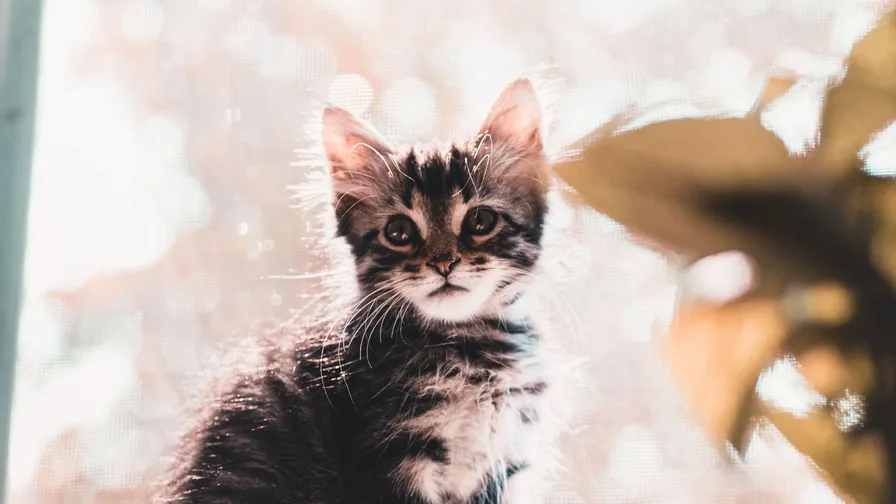
Your desktop is where you spend hours every day — it deserves better than a default gradient. A beautiful Mofusand wallpaper turns your workspace into somewhere you actually want to be: a soft pastel sky with a sleepy cat makes Monday-morning emails noticeably less painful. Cute surroundings genuinely lift your mood while you work.
Desktops are wide, though, and most Mofusand art is square or vertical. The challenge is finding or adapting art that fills a 16:9 screen without stretching, pixelating, or awkwardly cropping the cute. Get it right and the result is a workspace that feels designed, not decorated.
In this guide, you’ll learn how to transform your desktop with beautiful Mofusand wallpaper ideas: finding wide-format art, positioning around icons and taskbars, matching your desktop theme, and multi-monitor ideas for the truly committed.

Find Wide-Format Mofusand Art
The hunt starts with shape. Search specifically for wide, landscape, or desktop versions — “Mofusand desktop wallpaper 1920×1080” or “kawaii cat wallpaper wide screen” — because art made for phones will look lost on a monitor. Panoramic Mofusand scenes exist: cats lounging across flower fields, floating through starry skies, parading in costume lines.
When you can’t find a true wide version, look for square art with generous backgrounds. A square illustration with lots of sky or soft gradient around the cat can be extended or centred on a matching background colour for a clean wide result. Some wallpaper tools can even outpaint the edges for you.
Wide-format hunting:
● Search “desktop wallpaper” + resolution (1920×1080, 2560×1440) for correctly shaped art.
● Panoramic scenes — cats in landscapes or skies — fill wide screens naturally.
● Square art with generous backgrounds can be centred on a matching colour.
● Minimum 1920px wide; 2560px+ for QHD monitors to stay crisp.
Position Around Icons and Taskbars

A desktop isn’t a blank canvas — it’s covered in stuff. Icons along the left, a taskbar along the bottom, maybe widgets on the side. The cutest wallpaper in the world fails if the cat’s face hides behind your recycle bin. Plan the composition: keep the star subject in a zone that stays clear, usually centre or centre-right.
The easiest approach is a tidy desktop: move icons into a single folder or hide them entirely for a clean look that shows off the art. If you need icons visible, cluster them in one corner and choose art with its focal point in the opposite area. Balance, not battle.
Positioning tips:
● Keep the main subject centre or centre-right, clear of icons and taskbars.
● Consider hiding desktop icons for a clean, art-forward look.
● Cluster necessary icons in one corner; choose art with focal point opposite.
● Account for the taskbar — the bottom strip is never truly visible.
Match Your Desktop Theme
A wallpaper that clashes with your OS theme looks unfinished. If you run dark mode, a pale pastel wallpaper can feel jarring next to dark windows — either switch to light mode for full kawaii harmony or choose Mofusand art with deeper, duskier tones that bridge the gap. Accent colours pulled from the wallpaper (a soft pink, a warm cream) tie everything together.
Custom touches multiply the effect: a cute cursor theme, pastel folder icons, a matching browser theme. Each one is small, but together they turn “a cute wallpaper” into “a cute computer.” Rainmeter or desktop widget tools can add a kawaii clock or system monitor in matching colours.
Theme-matching ideas:
● Align light/dark mode with your wallpaper’s overall brightness.
● Set your OS accent colour to a tone pulled from the artwork.
● Add pastel folder icons and a matching browser theme.
● A kawaii clock or system widget in matching colours completes the look.
Go Multi-Monitor

Two monitors means twice the cute — but also twice the planning. The classiest approach is a panoramic Mofusand scene stretched across both screens: one continuous illustration flowing from monitor to monitor. It looks stunning, like a mural. You’ll need an ultra-wide version of the art (3840px+ for two 1080p screens) and to disable any per-monitor cropping.
The simpler alternative: complementary wallpapers, one per screen, in the same palette and mood. A sleepy cat on the left monitor, a playful cat on the right — a matched pair rather than one image. This is more forgiving of different monitor sizes and easier to source art for.
Multi-monitor tips:
● Panoramic single image across monitors = mural effect; needs 3840px+ art.
● Complementary pair (same palette, different cats) is easier and flexible.
● Keep the primary work monitor’s wallpaper calmer; let the secondary show off.
● Match brightness between the two so neither screen visually shouts.
Refresh Without the Fuss

Desktop wallpaper apps and OS slideshow features make rotation effortless. Point Windows or macOS at a folder of your favourite Mofusand desktop art and let it shuffle daily or hourly — a fresh cute cat greeting you each morning is a small joy that never gets old. Curate the folder like a gallery: only art you’d happily stare at all day.
Seasonal refreshes are the most rewarding. Swap the whole folder four times a year — spring blossoms, summer skies, autumn coziness, winter snow — and your workspace always feels in tune with the world outside your window. Ten minutes, four times a year, endless delight.
Easy refresh ideas:
● Use OS slideshow/shuffle pointed at a curated Mofusand folder.
● Rotate daily or on wake — fresh cute every morning.
● Do a seasonal folder swap four times a year.
● Prune the folder occasionally; only keep art that still delights you.